

IITS offers a convenient self-help service for password reset and unlocking, catering to the needs of its staff, students, faculty, and alumni during lockout situations. This service ensures a prompt resumption of their work or studies. We have provided two options for self-help.
Please refer to the provided options below to reset or unlock your account.
For Students, Faculty and Staff
Microsoft Self-Service Password Reset (SSPR) and Unlock System
The Self-Service Password Reset (SSPR) system allows you to independently regain access to your Email, iNET, and other SMU resources by unlocking or resetting your password, ensuring minimal disruption to your work or studies without needing assistance from the IT Help Centre.
If you are an alumnus, please refer to the "For Alumni" section below.
For Registered Users
If you are an existing user and want to reset your password or unlock your account, please proceed with the button to visit the SSPR website.
Step 1: Proceed to SSPR portal and key in your full SMU email address. Complete the CAPTCHA and click the blue “Next” button.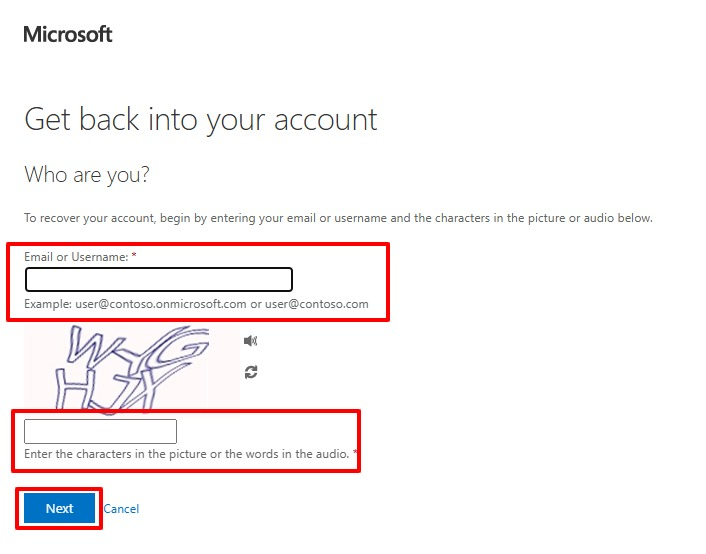
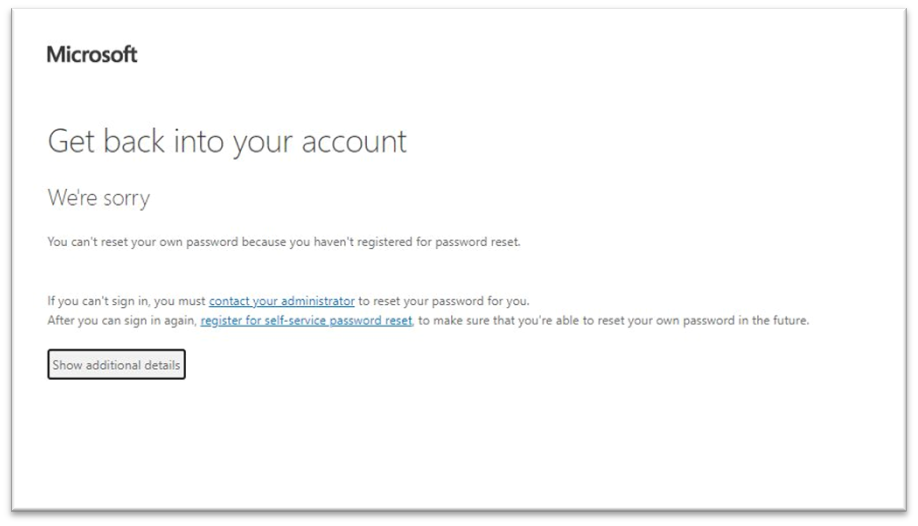
Note: If you get the error below, that means you have not done the One-Time setup. Please proceed to configure the One-Time setup before performing password reset.
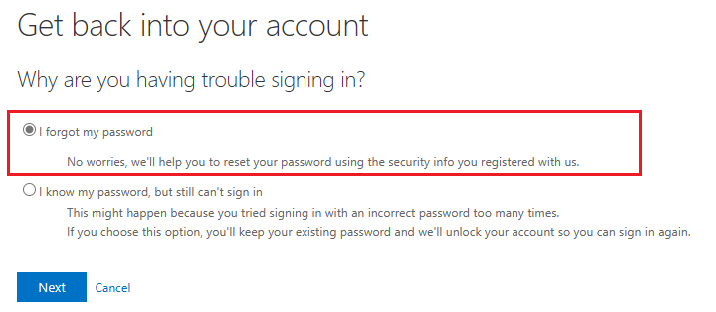
Step 2: Select the "I forgot my password" option and click the blue “Next” button.
Step 3: Choose your preferred method to obtain the verification code.
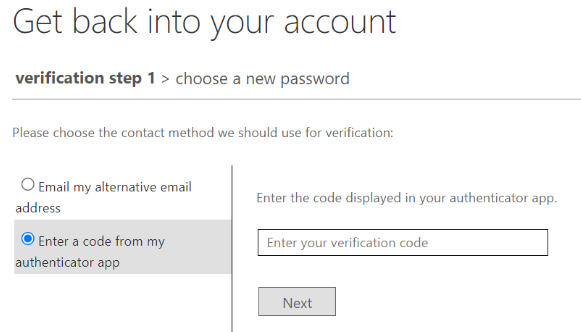
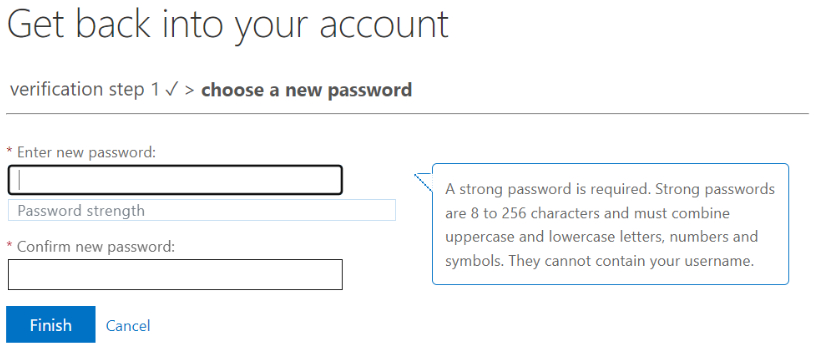
Step 4: After you enter the verification code, you will be directed to the “choose a new password” screen. Enter and confirm your new password, and click the blue “Finish” button.
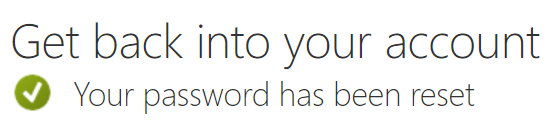
Step 5: Once you are done, you will see this message “Your password has been reset”.
Step 1: Proceed to SSPR portal and key in your full SMU email address. Complete the CAPTCHA and click the blue “Next” button.
Note: If you get the error below, that means you have not done the One-Time setup. Please proceed to configure the One-Time setup before performing password reset.
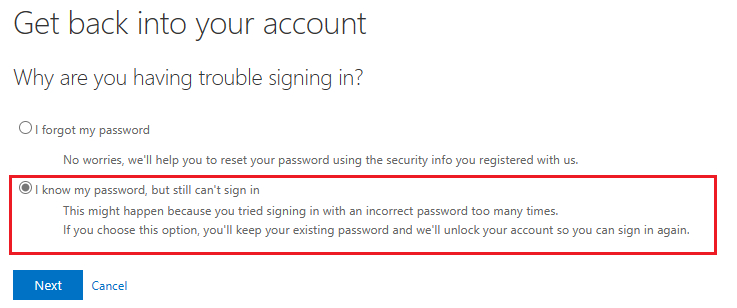
Step 2: Select the "I know my password, but still can't sign in" option and click the blue “Next” button.
Step 3: Choose your preferred method to obtain the verification code.
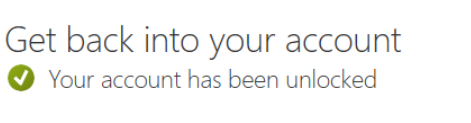
Step 4: Once you have verified your identity successfully, you will see a "Your account has been unlocked" message.
For First-time Users
If you are a first-time user, please proceed to learn more about this service and the necessary set-up.
This service is available for Undergraduate, Postgraduate, Staff and Faculty.
- Microsoft Authenticator App, or
- Personal email
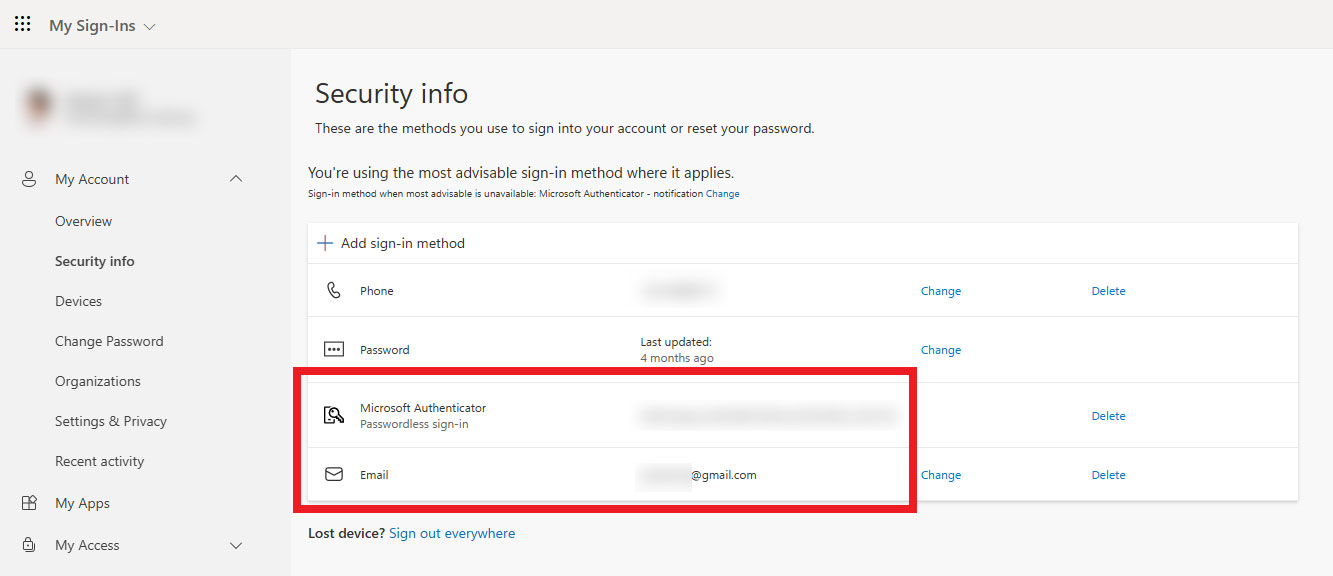
Step 1: Go to your Microsoft Security Info page. Ensure your Microsoft Authenticator and/or personal email are part of the sign-in method.
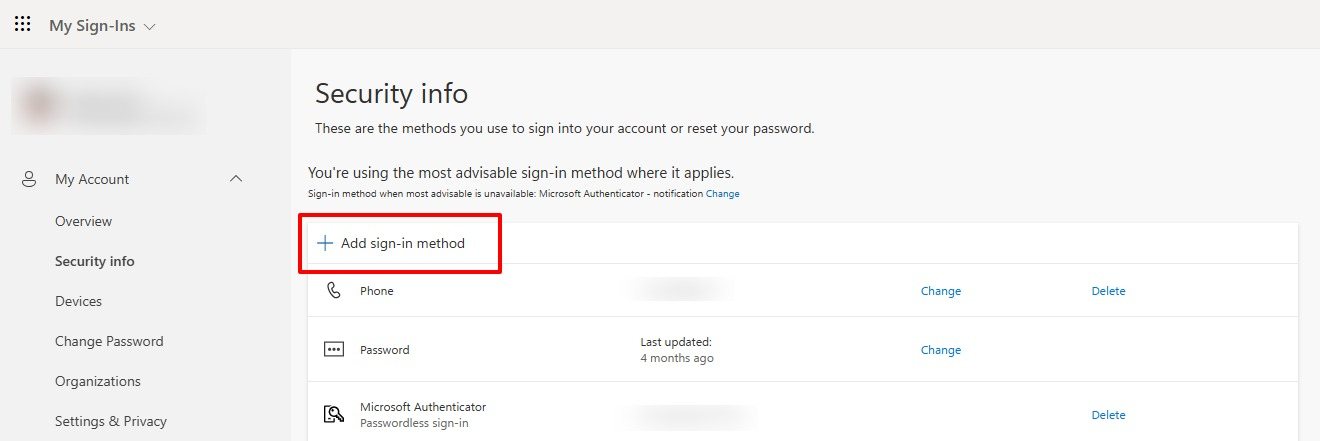
Step 2: If these options are not configured, click the "Add sign-in method" button.
Step 3: Select the “Authenticator app” or “Email” option and follow the prompts to add them as your authentication method. Once the sign-in methods are added, you can now perform password reset via SSPR.
If you have further queries, visit the FAQ page > For Students, Faculty and Staff section.
For Alumni
Online Password Reset Service
UNLOCK or RESET your SMU Password to access your Email, OASIS, Alumni Services, and other SMU resources using a valid Singapore mobile number registered with SMU.
For Registered Users
If you are an existing user and want to reset your password or unlock your account, please proceed with the button do so.
If you wish to update your personal details or recent contactable mobile number, please email to SMU Office of Alumni Relations at the following alumni@smu.edu.sg.
Note: After a password change, you will have to update ALL your devices (eg. Smartphone, Tablet, etc.) with this new password.
After resetting your password or unlocking your account, you are encouraged to synchronise and clear the old credentials from all your logged-in devices. Please refer to the guides below:
Alternatively, you can use the Automated Cached-Password Remover tool.
For First-time Users
If you are a first-time user, please proceed to learn more about this service and the necessary set-up.
This service is available for Alumni.
OTP via a valid Singapore mobile number registered with SMU
Step 1: Go to https://pwdreset.smu.edu.sg/Registration/reg/Registration to register. You will be prompted to key in your full SMU email address.
Step 2: On the next screen, you will be prompted to provide your Singapore mobile number for the OTP generation.
Step 3: Once the OTP is verified, you will then be asked to set your secret question and answer.
Step 4: Once the secret question and answer is set, you are done.
If you have further queries, visit the FAQ page > For Alumni section.
Get Help
Please email SMU IT Help Centre at helpdesk@smu.edu.sg or call 6828 0123 during office hours between Monday to Friday, 8am to 6pm.